How to Turn an iPhone Into a 'Dumb Phone' to Stop Social Media Addiction in Kids
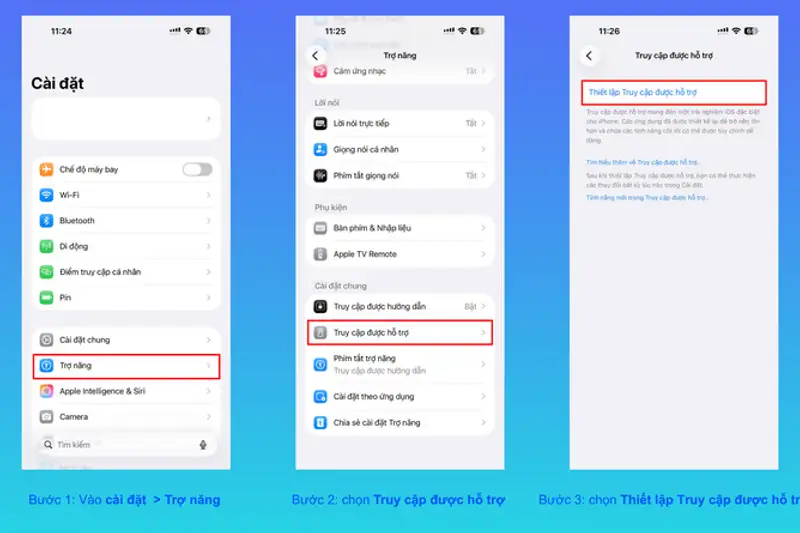
- Apple's native Assistive Access feature converts an iPhone into a minimalist 'dumb phone' without third-party app subscriptions.
- Parents can block web browsing entirely by omitting Safari, rendering web links sent in messages unclickable.
- The interface uses high-contrast, oversized icons that cut down visual clutter and curb compulsive screen checking.
- Device-level controls complement upcoming regulatory trends enforcing guardian-linked accounts and age verification.
As digital distraction reaches unprecedented levels among school-aged children and teenagers, parents worldwide are searching for practical strategies to curb screen addiction without forcing complete technological isolation. While purchasing a secondary, basic feature phone—commonly referred to as a 'dumb phone'—has grown in popularity, Apple offers a native, cost-effective alternative embedded directly within its operating system. Through a built-in feature called Assistive Access, parents can convert an iPhone into a streamlined, low-distraction device that restricts web access, blocks social media applications, and simplifies the user interface to its absolute essentials.
Quick summary
- Native iOS Feature: Apple's Assistive Access transforms standard iPhones into basic feature phones without requiring third-party software installations or paid subscription plans.
- Granular Restriction Capabilities: Parents can select explicitly approved applications, completely block web browsing by excluding Safari, and restrict incoming or outgoing communications to approved contacts.
- Simplified Visual Interface: The mode replaces standard home screen layouts with oversized grid or row icons designed to reduce visual clutter and limit compulsive app-switching habits.
- Regulatory Alignment: The tool arrives as policymakers push for stricter digital child safety measures, including mandatory guardian-linked accounts and platform-level age verification.
Why it matters
The pervasive spread of social media feeds, short-form video algorithms, and constant notification alerts has turned modern smartphones into major sources of distraction and cognitive fatigue for young users. For parents, managing screen time often involves a endless battle against workarounds, paid subscription tools, or buying separate minimalist hardware. Utilizing native iOS system tools provides a frictionless, zero-cost method to enforce firm digital boundaries.
By removing browser access through Safari, even web links embedded inside incoming text messages become completely non-functional. This closes a notorious loophole that tech-savvy children frequently exploit to bypass conventional parental control profiles. Furthermore, this setting offers families a practical transition tool as digital platforms and regulators move toward mandatory age-verification frameworks and stricter guardian supervision standards.
Background
Over the past decade, smartphone manufacturers and software developers have introduced various software features to monitor digital wellness, ranging from Screen Time analytics to customizable Focus modes. However, traditional restrictions can often be circumvented or disabled by teenagers familiar with system settings. While Apple continues to refine its ecosystem safeguards—with further updates to parental controls anticipated in future iOS builds—users can leverage existing system settings today.
Originally developed to assist individuals with cognitive disabilities, Assistive Access has emerged as a favored tool among digital minimalism advocates and parents seeking device management solutions. Meanwhile, international legislative proposals increasingly focus on child protection online. Draft regulations call for minor accounts to be registered under parent or guardian credentials, paired with mandatory age verification and targeted content distribution controls aimed at fostering safer online spaces.
How Assistive Access Transforms the iPhone Experience
Unlike standard parental controls that rely on timed app limits or password prompts, Assistive Access fundamentally alters the operating system's presentation. Upon activation, the standard icon grid, notification center, widget center, and control panels disappear completely. They are replaced by high-contrast, oversized buttons arranged in either a simple grid or list view.
Parents retain full authority over which applications appear on this reduced home screen. Core functions such as phone calls, text messaging, camera, and specific educational tools can remain active while high-distraction platforms—including TikTok, Instagram, YouTube, and web browsers—are hidden entirely. Because the App Store is inaccessible while Assistive Access is active, children cannot download new games or social media apps independently.
Step-by-Step Configuration Guide for Parents
Setting up the simplified interface requires no external software downloads and can be completed in just a few minutes through the main system menu:
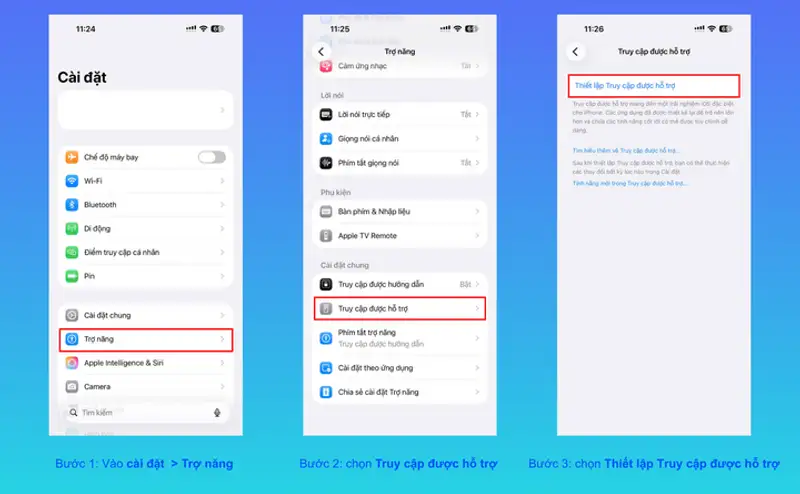
- Open Settings on the iPhone and select Accessibility.
- Scroll down to the general section and tap Assistive Access.
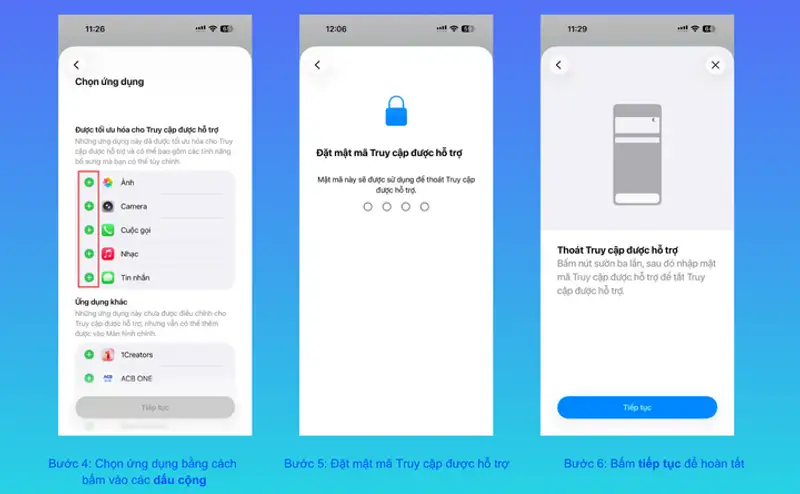
- Follow the configuration wizard to choose app layouts (Grid or Row) and select authorized applications.
- Exclude Safari and third-party web browsers to prevent internet browsing.
- Establish a unique Assistive Access Passcode (distinct from the primary device lock passcode) to prevent unauthorized exits from the mode.
Once enabled, exiting Assistive Access requires a triple-click of the side button (or home button) followed by entering the dedicated guardian passcode. This ensures that the restricted environment remains active until a parent manually deactivates it.
Aligning System Controls with Evolving Digital Safety Policy
The practical application of device-level restrictions coincides with growing legal accountability for digital platforms. Legislative proposals across multiple jurisdictions are shifting responsibility toward both tech companies and parents. Key measures include requiring minor accounts to be authenticated via official guardian details and mandating strict age-verification mechanisms across social networks.
While system operators continue to refine parental monitoring tools ahead of major software updates, built-in features like Assistive Access provide immediate physical utility. Combining account-level regulatory controls with local device restrictions ensures that young users are shielded from both inappropriate web content and obsessive engagement patterns.
Qnews24h insight
While converting an iPhone into a minimalist feature phone offers an effective technical gatekeeper against screen fatigue, technology alone cannot replace ongoing family conversations about digital literacy. Device-level toggles like Assistive Access provide essential friction against algorithmic addiction during critical developmental years. However, long-term balance requires pairing restricted environments with active parental mentorship, ensuring children develop healthy self-regulation habits as they transition back toward full digital access in adulthood.
Frequently Asked Questions
Can a child bypass Assistive Access without the passcode?
No. Leaving Assistive Access requires entering a separate, guardian-defined PIN code via a triple-click system shortcut. Standard device passcodes do not unlock the restricted mode if a distinct Assistive Access code has been configured.
Can internet browsing be completely disabled?
Yes. By omitting Safari and any third-party browsers during the initial app selection setup, web access is totally removed. Web links sent via SMS or messaging apps will fail to launch standard browser windows.
Is Assistive Access available on all iPhones?
Assistive Access is available on iPhones running modern iOS versions that support Apple's accessibility features. It is built into the core operating system free of charge.
Sources
Why it matters
Social media feeds and browser loops create persistent digital distractions for children. Using built-in iOS tools allows parents to enforce clear boundaries, block web access, and eliminate workarounds without purchasing additional minimalist hardware or paying app subscription fees.
Background
As digital addiction concerns grow, tech companies have introduced Screen Time and Focus settings, though teenagers often find ways around them. Assistive Access, initially designed for cognitive accessibility, has become a primary tool for parents and digital detox advocates ahead of stricter government rules on child account registration and age verification.
System-level restrictions like Assistive Access provide an immediate, practical shield against algorithmic screen addiction. However, software toggles must be viewed as support tools rather than total solutions; sustainable digital balance ultimately depends on pairing technical boundaries with parental guidance and open conversations.
References
Editorial information
The editorial team reviews sources, adds context, and structures stories so readers can understand the news more clearly.
Article from QNEWS24H
Comments
(0)No comments yet. Be the first to share your thoughts.