Unlocking Home Wi-Fi: 4 Hidden Router Settings to Instantly Speed Up and Secure Your Network

- DHCP Reservation assigns permanent local IP addresses to stationary devices, preventing local connectivity drops and IP address conflicts.
- Updating WAN DNS to public providers like Cloudflare (1.1.1.1) or Google (8.8.8.8) accelerates web page loading and improves overall browsing security.
- Activating an isolated Guest Network for smart home IoT devices sandboxes security vulnerabilities away from personal PCs and phones.
It is a frustratingly familiar scenario in modern households: a video call abruptly freezes midway, a streaming movie buffers indefinitely, or a smart camera drops offline without warning. For most users, the immediate reflex is to blame their Internet Service Provider (ISP), upgrade to a more expensive monthly plan, or spend hundreds of dollars on external signal boosters and mesh Wi-Fi hardware. However, networking experts warn that a massive portion of home connectivity issues do not stem from inadequate external bandwidth. Instead, the bottleneck lies within the local area network, specifically caused by poorly optimized, default settings on the home router. By spending just five minutes in your router's administration dashboard, you can adjust four critical hidden configurations to maximize your current hardware's potential and secure your digital life.
Quick summary
- DHCP Reservation eliminates IP conflicts: Assigning permanent local IP addresses to static devices like smart cameras and network-attached storage (NAS) prevents connection drops caused by dynamic IP address cycling.
- Custom WAN DNS accelerates web loading: Routing domain requests through premium public servers like Cloudflare or Google reduces webpage latency and adds robust anti-phishing protection at the source.
- Isolated Guest Networks sandbox smart home threats: Separating vulnerable Internet of Things (IoT) gadgets like smart bulbs and robot vacuums from the main network keeps sensitive personal data on PCs and phones safe from hackers.
Why it matters
As the average household transitions into a highly dense digital ecosystem, the demands on home routers have skyrocketed. It is no longer just about connecting a couple of laptops; today's networks orchestrate traffic for dozens of smart appliances, security devices, work-from-home terminals, and entertainment systems simultaneously. Leaving a router on its factory-default settings is equivalent to running an advanced engine on basic low-grade fuel. Unoptimized routers fail to prioritize critical traffic, suffer from internal address collisions, and leave local devices highly vulnerable to external cyber threats. Resolving these bottlenecks not only restores the true internet speed you are already paying for but also establishes a defensive perimeter around your private data.
Background
Historically, home routers were designed as simple "plug-and-play" gateways. To minimize customer support inquiries, manufacturers and ISPs shipped these devices with highly generalized, permissive settings optimized solely for ease of initial setup rather than long-term security or peak performance. However, this one-size-fits-all approach has aged poorly. The explosion of smart home appliances (IoT) has introduced massive security vulnerabilities, as these cheap gadgets rarely receive firmware updates and often run on minimal security protocols. Simultaneously, the rise of remote work and local high-bandwidth streaming (such as NAS servers and 4K media streaming) has exposed the fragility of dynamic IP management inside standard home networks.
Qnews24h insight
The conventional wisdom that buying faster internet packages guarantees a better online experience is a marketing illusion. High-bandwidth connections (such as 1 Gbps fiber optics) only determine the size of the digital pipe coming into your home, not how efficiently that data is distributed to your individual devices. The true bottleneck is almost always the local local area network (LAN) orchestration. By manually configuring internal protocols like DHCP and DNS, users are essentially taking control of the local digital traffic control tower. Router manufacturers should do a better job of guiding everyday users through these essential configurations during setup, but until that becomes an industry standard, taking proactive manual control remains the single most effective way to optimize your household's digital infrastructure.

1. Lock Down Local Connections with DHCP Reservation
By default, your router utilizes a system called Dynamic Host Configuration Protocol (DHCP) to act as a digital traffic controller. Every time a device connects to your Wi-Fi, the DHCP server hands it a temporary IP address. While this fluid rotation works perfectly fine for transient devices like smartphones and tablets, it can cause severe connectivity issues for permanent, static hardware. Devices such as smart security cameras, local printers, network-attached storage (NAS) drives, and smart home hubs require constant, predictable addresses to communicate efficiently. When the router dynamically rotates their IPs, local connections break, causing devices to temporarily disappear from your control apps.
The solution is to configure DHCP Reservation (sometimes labeled as Address Reservation, Static Lease, or Static IP). This setting instructs your router to permanently bind a specific local IP address to a device's unique hardware MAC address. To set this up, access your router's admin portal, locate the LAN or DHCP settings page, select your critical device from the active client list, assign it a designated IP, and save. This simple configuration permanently eliminates IP conflicts and ensures instant local connectivity.
2. Transition to Premium Public DNS Servers
Every time you type a website address into your browser, your network must translate those readable letters into numerical IP addresses. This translation service is handled by a Domain Name System (DNS)—often referred to as the phonebook of the internet. By default, your router uses the DNS servers provided by your local ISP. These default servers are notoriously slow, prone to periodic outages, and sometimes keep detailed logs of your browsing activity for advertising purposes.
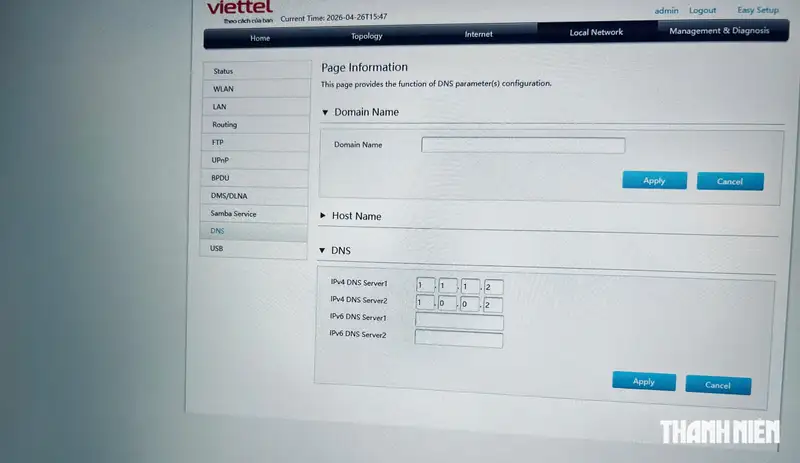
To bypass these limitations, you should change the WAN DNS settings on your router to point to highly optimized public alternatives. Changing this at the router level automatically upgrades every single device connected to your home Wi-Fi. The most popular and secure public DNS options include:
- Cloudflare DNS: Primary
1.1.1.1/ Secondary1.0.0.1(Prioritizes raw speed and user privacy). - Google Public DNS: Primary
8.8.8.8/ Secondary8.8.4.4(Known for extreme reliability and global speed coverage). - Cloudflare Security DNS: Primary
1.1.1.2/ Secondary1.0.0.2(Automatically blocks known malware and phishing domains).
To implement this change, navigate to the Internet, WAN, or Setup page in your router's administrative menu, locate the DNS Server fields, input the IP addresses of your chosen provider, and apply the settings.

3. Segment Smart Home Devices on an Isolated Guest Network
The convenience of smart home technology comes with a hidden security cost. Cheap IoT devices like smart light bulbs, connected plugs, and robotic vacuum cleaners are prime targets for cybercriminals. Because they are rarely updated, hackers can compromise these low-security devices and use them as lateral entry points to access other devices on the same local network, such as your personal computer, phone, or local backup drives.
The best defense against this vulnerability is network segmentation. Almost all modern routers feature a Guest Network or IoT Network option. By enabling this feature, you create an entirely separate Wi-Fi network with its own name and password. When configuring this network, make sure to enable the "AP Isolation" or "Disable Local Network Access" setting if available. Connect all of your smart home appliances and visiting guests to this secondary network. They will still have seamless access to the internet, but they will be sandboxed in a separate virtual environment, completely blocked from accessing your primary personal devices and confidential data.
4. Optimize Channel Widths and Frequency Allocation
If you live in a dense apartment building or suburban neighborhood, wireless congestion is one of the most common causes of slow Wi-Fi speeds and high latency. Routers automatically broadcast signals on specific channels within the 2.4 GHz and 5 GHz frequency bands. When multiple nearby routers broadcast on the exact same channel, it creates massive packet collisions and wireless noise, leading to dropped packets and speed drops.
While modern routers attempt to auto-select channels, they often do so poorly. For the 2.4 GHz band, manually lock your router to the non-overlapping channels: 1, 6, or 11. For the 5 GHz band, ensure your channel width is set appropriately. While a wider channel width (such as 80 MHz or 160 MHz) allows for higher peak transfer speeds, it is much more susceptible to interference. If your 5 GHz Wi-Fi drops frequently, reducing the channel width to 40 MHz can provide a significantly more stable and reliable connection, especially in crowded wireless environments.
Sources
This technical guide is compiled with reference to network security best practices and technical specifications provided by Thanh Nien (thanhnien.vn).
Why it matters
Optimizing internal router configurations shifts your home network from a passive, default state into a high-performance, secure environment. It resolves localized traffic jams, improves gaming and video call stability, and safeguards personal financial data from vulnerable smart home appliances without requiring any expensive hardware upgrades.
Background
For years, routers were shipped with basic plug-and-play settings to ensure easy customer setup. However, the modern surge in smart home adoption and high-bandwidth remote working has made these generic configurations obsolete, causing frequent local IP conflicts and leaving main networks exposed to IoT security flaws.
As gigabit-speed internet becomes more common globally, the bottleneck has shifted from external ISP bandwidth to internal home network management. Future router firmware must prioritize user-friendly network segmentation and automated DNS optimizations out of the box, as manual configuration remains a daunting task for the average consumer.
References
Editorial information
The editorial team reviews sources, adds context, and structures stories so readers can understand the news more clearly.
Article from QNEWS24H
Comments
(0)No comments yet. Be the first to share your thoughts.