Decoding USB Ports: Understanding Symbols for Speed, Power, and Always-On Charging

- A new circular symbol with a number (e.g., '20' or '40') next to a USB port indicates support for the advanced USB4 standard, offering data speeds up to 20 or 40 Gigabits per...
- USB4 ports also incorporate enhanced Power Delivery (PD) capabilities, supporting rapid charging for various devices with power outputs potentially reaching up to 240 watts.
- Beyond data, a separate circular power icon or specific port colors like teal, red, or yellow, signify an 'always-on' charging port, which can power devices even when the host...
- Achieving optimal performance and ensuring device safety requires using USB cables that are compatible with the port's specific capabilities, making careful cable selection as...
Navigating the diverse world of USB connectivity can often feel like deciphering an ancient language, especially with the proliferation of various port types and standards. For many users, distinguishing between ports capable of lightning-fast data transfers, powerful rapid charging, or even maintaining power when a computer is off, has become increasingly complex. Fortunately, a series of visual indicators—from specific symbols to distinct color codes—are integrated into hardware design to help clarify these functionalities, making it easier for consumers and professionals alike to optimize their device's performance and ensure safe usage.
Quick summary
- A new circular symbol with a number (e.g., '20' or '40') next to a USB port indicates support for the advanced USB4 standard, offering data speeds up to 20 or 40 Gigabits per second (Gbps) respectively.
- USB4 ports also incorporate enhanced Power Delivery (PD) capabilities, supporting rapid charging for various devices with power outputs potentially reaching up to 240 watts.
- Beyond data, a separate circular power icon or specific port colors like teal, red, or yellow, signify an 'always-on' charging port, which can power devices even when the host computer is off.
- Achieving optimal performance and ensuring device safety requires using USB cables that are compatible with the port's specific capabilities, making careful cable selection as crucial as port identification.
Why it matters
Understanding the subtle distinctions between USB ports is more than just technical trivia; it has tangible impacts on daily productivity, device longevity, and user experience. For the average consumer, correctly identifying port capabilities means faster file transfers, significantly reduced charging times for smartphones, tablets, and even laptops, and the convenience of charging accessories without powering up an entire system. This knowledge prevents frustrating slowdowns when transferring large media files or backing up data, ensuring workflows remain smooth and efficient.
In a professional context, where every second counts, knowing which port offers the highest data throughput can dramatically impact tasks like video editing, scientific data analysis, or connecting high-performance external drives and displays. Businesses can leverage this understanding to set up optimal workstations, ensuring peripherals operate at their maximum potential, thereby boosting employee efficiency and reducing operational bottlenecks. Furthermore, using appropriately matched ports and cables mitigates risks associated with incompatible power delivery, safeguarding expensive hardware from potential damage due to insufficient or excessive current.
Beyond individual and business users, the clarity in USB port identification also contributes to the broader technological ecosystem. It aids manufacturers in designing more intuitive hardware and helps reduce e-waste by extending the lifespan of devices that might otherwise be prematurely replaced due to perceived performance issues stemming from incorrect usage. As connectivity standards continue to evolve, empowering users with the knowledge to navigate this complexity ensures a more seamless, efficient, and safer digital experience for everyone.
Background
The journey of the Universal Serial Bus (USB) began in the mid-1990s as a solution to simplify PC connectivity, aiming to replace a confusing array of serial and parallel ports. Early versions like USB 1.0 and 2.0 offered modest data transfer speeds and limited power output, primarily for peripherals like keyboards, mice, and basic printers. However, as digital media grew in size and mobile devices became ubiquitous, the demand for faster data transfer and more robust power delivery intensified, driving rapid evolution within the standard.
The introduction of USB 3.0 (later rebranded as USB 3.1 Gen 1, then USB 3.2 Gen 1) marked a significant leap with its 'SuperSpeed' capabilities, denoted often by a blue port color and an 'SS' alongside the familiar trident symbol. This was followed by USB 3.1 Gen 2 (SuperSpeed+), and subsequently USB 3.2 Gen 2x2, each offering progressively higher speeds. Concurrently, the physical connector landscape also changed dramatically with the rise of USB-C, a reversible and compact connector designed to become a universal standard across various devices, from smartphones to high-end laptops.
While USB-C offered physical versatility, it also introduced a layer of confusion, as the connector's physical form did not inherently dictate its underlying capabilities. A USB-C port could support anything from USB 2.0 speeds to Thunderbolt 3 or 4 protocols, creating a critical need for clearer visual indicators. This backdrop set the stage for the latest advancements, particularly USB4, which consolidates previous standards and introduces more explicit iconography like the circular symbols to unambiguously communicate a port's full potential for ultra-high-speed data transfer and advanced power delivery, addressing the complexities that arose from years of incremental, sometimes confusing, revisions.
Qnews24h insight
The ongoing evolution of USB standards, culminating in USB4 and its explicit port indicators, highlights a persistent tension in the technology industry: the push for innovation versus the imperative for user-friendliness. While the introduction of clear symbols like the circular '20' or '40' for USB4 capabilities is a welcome step towards demystifying port functions, it also underscores the industry's struggle to communicate increasingly complex technical specifications to a broad consumer base without overwhelming them.
This development suggests a trend where hardware design is becoming more reliant on 'at-a-glance' visual cues to convey functionality, recognizing that not all users can, or should have to, delve into detailed technical manuals. For tech companies, the challenge lies not just in developing faster, more powerful standards, but in standardizing how these advancements are presented to end-users. Future iterations may see even more sophisticated or universally recognized iconography, as the industry learns from user adoption patterns and continues its quest to balance cutting-edge performance with an accessible, intuitive user experience.
Decoding the Symbols: A Visual Guide to USB Capabilities
When examining a USB port, several visual cues can immediately inform you about its capabilities. Traditionally, the familiar trident symbol, depicting three arrows pointing outwards from a central circle, denotes a standard USB port. This icon often comes with variations; for instance, the addition of 'SS' (SuperSpeed) indicates a USB 3.0 or higher port, signifying faster data transfer rates than earlier generations. Some ports might also feature a lightning bolt symbol, which typically suggests enhanced charging capabilities.
However, with the advent of USB4, a newer and more specific set of indicators has emerged. These advanced ports are often distinguished by a distinctive circular symbol, which may appear as a full circle or a half-circle, accompanied by a numerical value. This innovative iconography is designed to provide users with direct and immediate information regarding the port's maximum data transfer speed and, implicitly, its overall performance potential.

USB4: Unleashing Next-Generation Performance
The most significant new indicator for high-performance connectivity is the circular symbol containing a number. If you spot a circle with a '20' or '40' adjacent to your USB-C port, you're looking at a USB4 port. The number directly correlates to its data transfer speed: '20' indicates a capability of up to 20 Gigabits per second (Gbps), while '40' signifies an impressive 40 Gbps.
These speeds are transformative for tasks involving large files, such as transferring 4K or 8K video, backing up massive datasets, or working with high-resolution external displays. For professionals like videographers, graphic designers, or data scientists, having a 40 Gbps port means significantly reduced waiting times and a smoother workflow, allowing for real-time manipulation of data that would bottleneck on slower connections. This level of bandwidth also supports advanced functionalities like external GPU enclosures, turning a portable laptop into a powerful gaming or rendering station.
Beyond raw data transfer, USB4 fundamentally integrates advanced Power Delivery (PD) capabilities. These ports are engineered to support fast charging at significantly higher wattages, potentially up to 240W. This means a single USB-C cable can power not only your smartphone but also charge high-performance laptops, power external monitors, and even supply power to complex docking stations, greatly simplifying cable management and reducing the need for multiple proprietary chargers. The integration of high-speed data and high-power delivery into one universal standard is a cornerstone of modern, streamlined computing.
Always-On Power: Charging Beyond the Shutdown
In addition to data and high-speed indicators, some USB ports offer the convenience of 'always-on' charging. This means they can supply power to your devices even when your laptop or computer is turned off, in sleep mode, or disconnected from its main power source (if on battery). Identifying these ports is crucial for users who rely on their computers as central charging hubs.
One common visual cue for an always-on port is a different circular symbol: a circle with a small vertical line extending downwards, resembling a simplified power icon. This symbol specifically indicates that the port is designed to remain active for charging purposes regardless of the computer's operational state. Such ports are particularly useful for charging peripherals overnight or topping up a phone battery without needing to fully boot up your system.
Furthermore, some manufacturers also employ specific color coding to denote always-on charging functionality. Colors like teal, red, or yellow on the inside of the USB port can serve as an additional visual indicator for this feature, though this practice can vary between brands. Understanding these visual cues ensures you can quickly locate the most convenient and effective ports for all your charging needs, enhancing the utility of your devices.
The Critical Link: Choosing the Right USB Cable
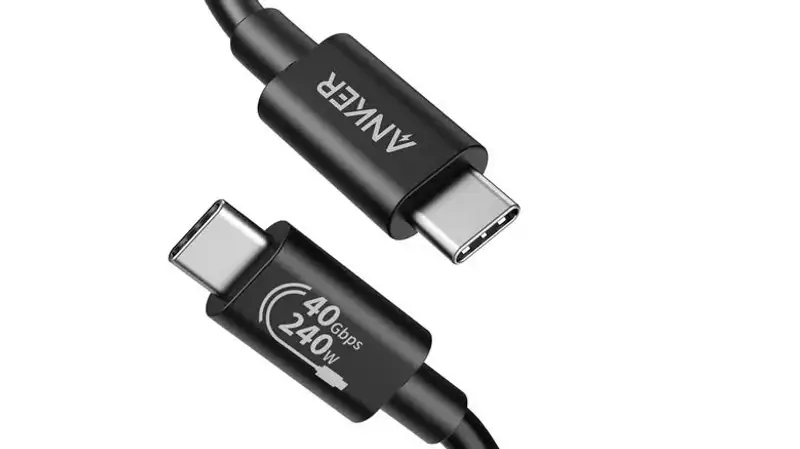
While identifying the capabilities of your USB ports is essential, the entire ecosystem's performance hinges on one often-overlooked component: the USB cable itself. A high-performance USB4 port, capable of 40 Gbps data transfer and 240W power delivery, will be bottlenecked if paired with an incompatible or lower-spec cable. Many users mistakenly believe all USB-C cables are identical, leading to frustratingly slow charging or data transfer speeds.
Just like ports, USB cables are also rated for specific speeds and power capacities, and they often carry similar symbols or explicit labeling. High-quality cables designed for USB4 will explicitly state their support for 40 Gbps data and potentially 240W Power Delivery. It is imperative to match the cable's capabilities to those of your port and device to ensure optimal performance. Using a 'charge-only' cable for data transfer, or a low-wattage cable for fast-charging a laptop, will simply not yield the desired results.
Beyond performance, cable quality significantly impacts safety. Cheap, uncertified, or poorly constructed USB cables can pose serious risks, including overheating, damaging connected devices, or even fire hazards. Reputable manufacturers list detailed specifications for their cables, including maximum data transfer rates and power output. Investing in certified cables from trusted brands, despite a higher initial cost, is a critical step in protecting your valuable devices and ensuring a safe, efficient charging and data transfer experience.
Navigating a Complex Connectivity Landscape
The world of USB standards can undeniably be intricate, with its evolving nomenclature and myriad specifications. However, by understanding the visual cues—the trident symbols, 'SS' indicators, the specific numbers within circular icons for USB4, and the distinct power symbols or colors for always-on charging—users gain the power to make informed decisions about their connectivity. This knowledge empowers consumers to select the right ports and cables, unlocking the full potential of their devices, optimizing workflows, and ensuring a safe and efficient digital experience in an increasingly connected world.
Sources
FAQ
What does the circular symbol with a number on a USB port mean?
The circular symbol, often appearing as a full or half-circle, with a number like '20' or '40' next to a USB-C port, indicates that it is a USB4 compliant port. The number directly signifies its maximum data transfer speed in Gigabits per second (Gbps). '20' means up to 20 Gbps, and '40' means up to 40 Gbps, representing the latest in high-speed USB connectivity.
How can I identify an always-on charging USB port?
An always-on charging USB port can power devices even when the host computer is off or in sleep mode. These ports are typically identified by a specific circular power symbol (a circle with a vertical line extending downwards). Additionally, some manufacturers use distinct colors, such as teal, red, or yellow, on the inside of the port to visually indicate this functionality.
Why is using the right USB cable important?
Using the correct USB cable is crucial because a cable's capabilities must match those of the port and the device it's connecting. An advanced USB4 port with high speed and power delivery will be bottlenecked if paired with a lower-spec cable. Incompatible cables can lead to slow data transfers, inefficient charging, and in some cases, can even pose safety risks like overheating or damage to your devices. Always ensure your cable is rated for the speeds and power output required.
What is USB4 and what are its key benefits?
USB4 is the latest major revision of the Universal Serial Bus standard, designed to provide significantly faster data transfer rates and enhanced Power Delivery (PD) capabilities. Its key benefits include speeds up to 40 Gbps, which is crucial for large file transfers and high-resolution external displays. It also supports PD up to 240W for rapid charging of various devices, including laptops. USB4 aims to simplify connectivity by integrating multiple protocols (like Thunderbolt) over a single USB-C connector, offering a versatile and high-performance solution for modern computing.
Why it matters
Understanding the subtle distinctions between USB ports is more than just technical trivia; it has tangible impacts on daily productivity, device longevity, and user experience. For the average consumer, correctly identifying port capabilities means faster file transfers, significantly reduced charging times for smartphones, tablets, and even laptops, and the convenience of charging accessories without powering up an entire system. This knowledge prevents frustrating slowdowns when transferring large media files or backing up data, ensuring workflows remain smooth and efficient. In a professional context, where every second counts, knowing which port offers the highest data throughput can...
Background
The journey of the Universal Serial Bus (USB) began in the mid-1990s as a solution to simplify PC connectivity, aiming to replace a confusing array of serial and parallel ports. Early versions like USB 1.0 and 2.0 offered modest data transfer speeds and limited power output, primarily for peripherals like keyboards, mice, and basic printers. However, as digital media grew in size and mobile devices became ubiquitous, the demand for faster data transfer and more robust power delivery intensified, driving rapid evolution within the standard. The introduction of USB 3.0 (later rebranded as USB 3.1 Gen 1, then USB 3.2 Gen 1) marked a significant leap with its 'SuperSpeed' capabilities, denoted...
The ongoing evolution of USB standards, culminating in USB4 and its explicit port indicators, highlights a persistent tension in the technology industry: the push for innovation versus the imperative for user-friendliness. While the introduction of clear symbols like the circular '20' or '40' for USB4 capabilities is a welcome step towards demystifying port functions, it also underscores the industry's struggle to communicate increasingly complex technical specifications to a broad consumer base without overwhelming them. This development suggests a trend where hardware design is becoming more reliant on 'at-a-glance' visual cues to convey functionality, recognizing that not all users can,...
References
Editorial information
The editorial team reviews sources, adds context, and structures stories so readers can understand the news more clearly.
Article from QNEWS24H
Comments
(0)No comments yet. Be the first to share your thoughts.